
Submission Process
Approval process
Before submitting check you have done the following:
- Upload the template and fill all the required fields according to the briefing provided by Lilly
- Changed the document status to "staged for testing" and sent a test email, generating a PDF to serve as a proof rendition
- Uploaded the Proof Rendition to the specified email template in Veeva Vault PromoMats
- Linked the MLR piece
To Submit for brand Approval simply click the arrow icon and select submit for brand approval from the dropdown menu.
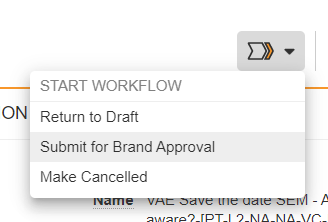
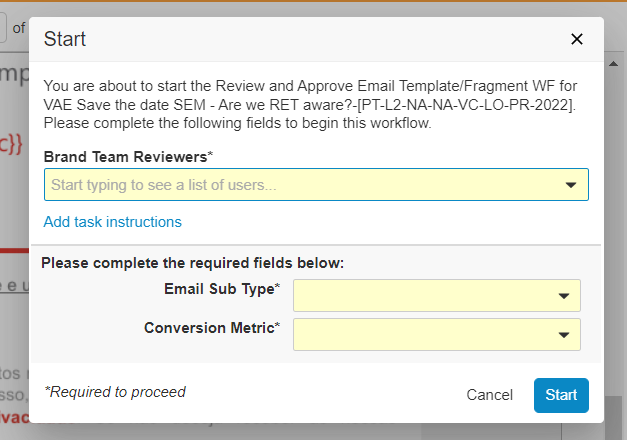
Each Lilly sub brand has its own responsible representative in Portugal. If submmiting a piece in SFMC you might need to send a test email.
- Aliança Lilly/Boheringer - Rui Pinheiro (pinheiro_rui_jorge_cardoso@lilly.com)
- Emgality - Andreia Bentes (bentes_andreia@lilly.com)
- Instituicionais/Non-brand/Taltz - Ana Soares (ana.soares@lilly.com)
- Jaypirca - Marisa Coelho (coelho_marisa@lilly.com)
- Lyumjev/Baqsimi - Rui Pinheiro (pinheiro_rui_jorge_cardoso@lilly.com)
- Mounjaro - Alexandra Vieira (alexandra.vieira@lilly.com )
- Olumiant Reuma - Pedro Moutinho de Freitas (pedro.moutinhodefreitas@lilly.com)
- Olumiant/Taltz - Rui Pinheiro (pinheiro_rui_jorge_cardoso@lilly.com)
- Omvoh - Mariana Bahury (mariana.bahury@lilly.com)
- Retsevmo - Marisa Coelho (coelho_marisa@lilly.com)
- Verzenios - Andreia Bentes (bentes_andreia@lilly.com)
former PMs
- Eduardo Ferreira (goncalves_eduardo_vitor@lilly.com)
Generating a render proof
First make sure you have the approved email template staged for testing and have given enough time for the SalesForce to synchronize with Veeva Vault PromoMats.
- Login to SalesForce with Float's Veeva Credentials. You should be presented with the screen bellow.
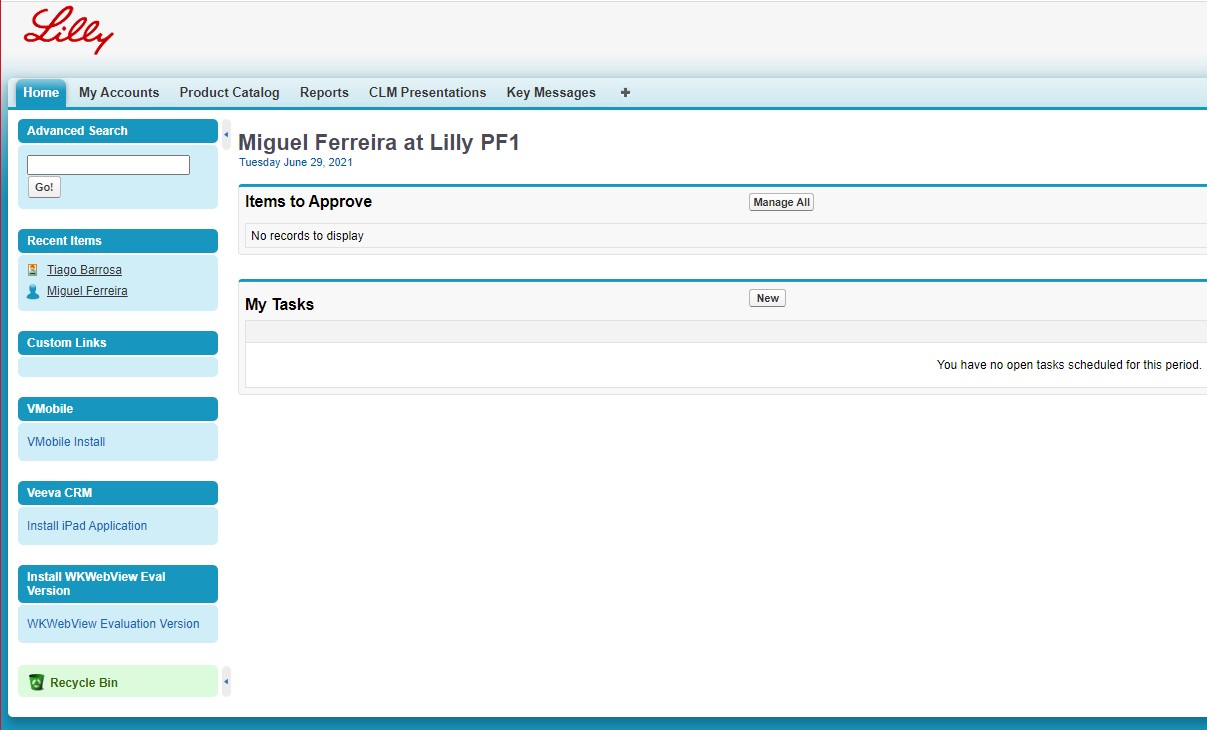
Click "João de Deus" on the recent items, or altermatively search for the contact using the advanced search.
In the contacts page, click que "send email" button located in the "account detail" section
You shoud now be presented with all the VAEs approoved or staged for testing in Veeva Vault available to be sent. Use the products filter to more easily find the VAE you want to test and sort it by status in order to have the staged ones at the top. Tick the checkbox on the left of the email you ant to test and click add selected.
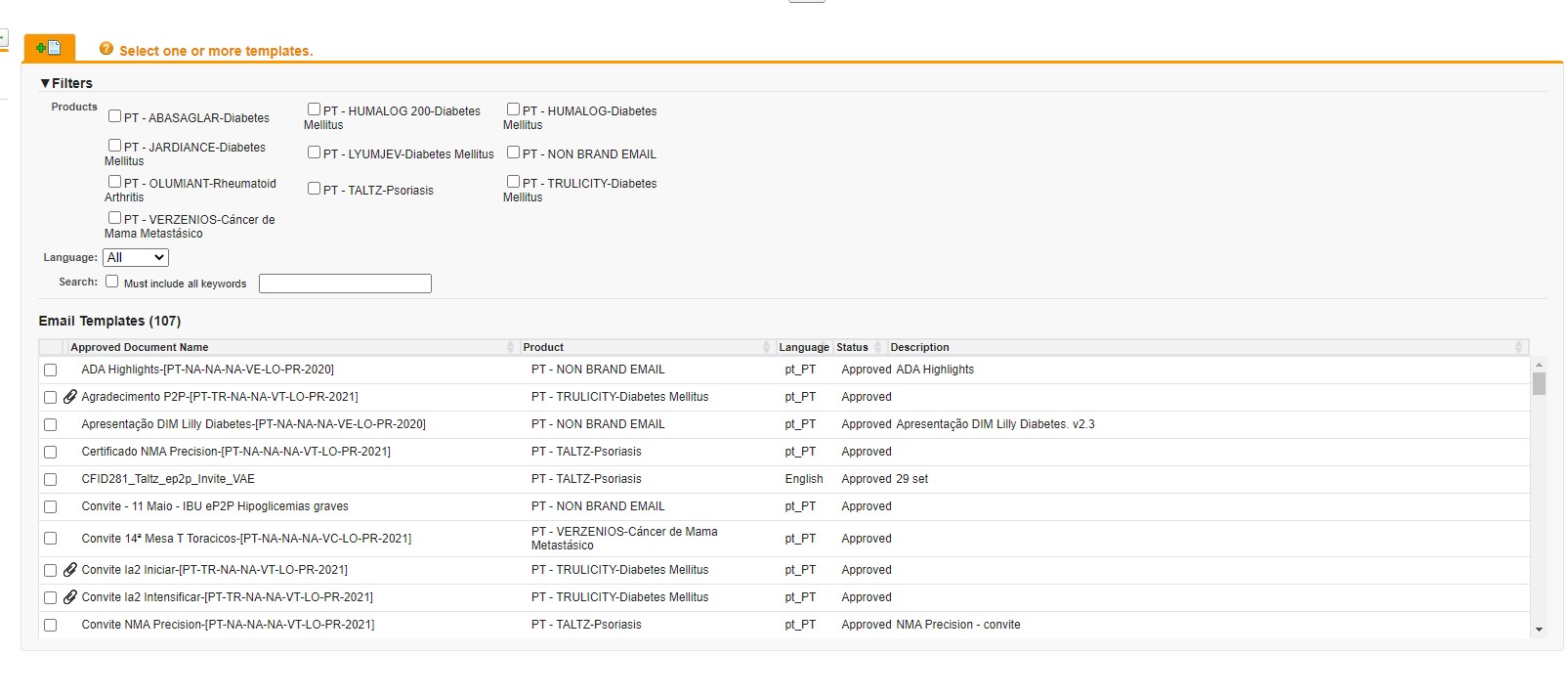
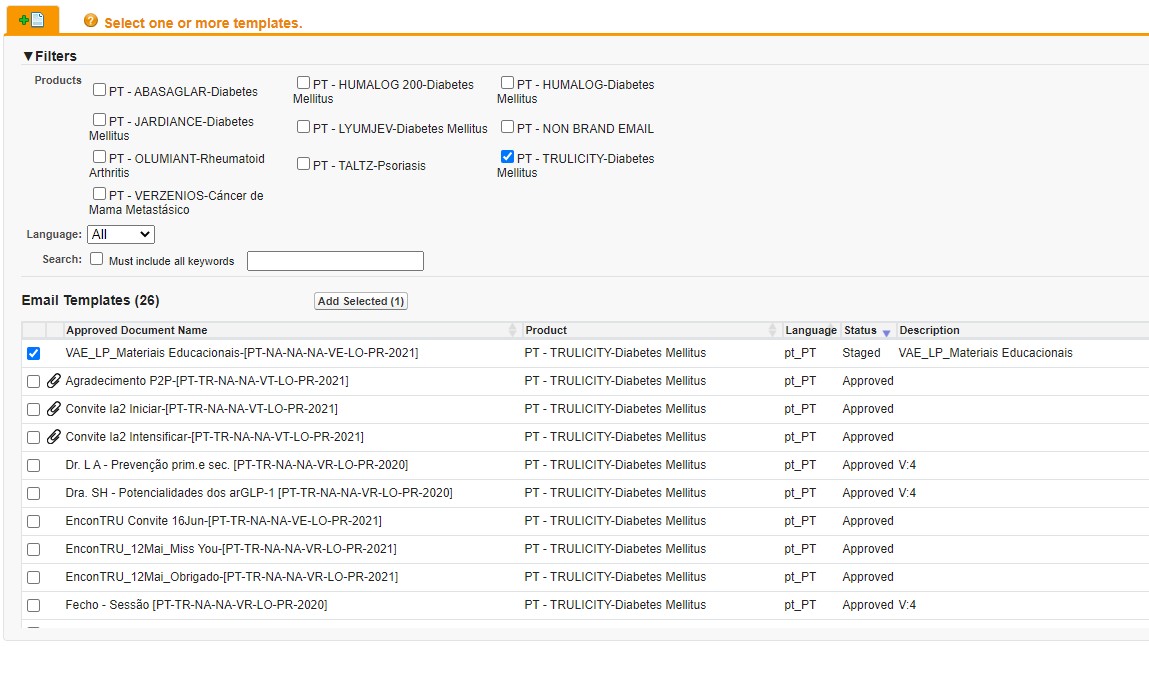
- A new tab is added at the top of the page. Click it if it is not already highlighted in orange.
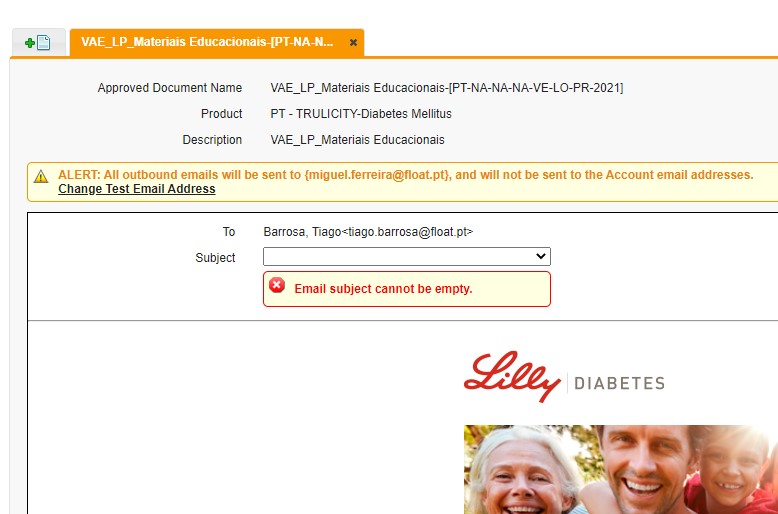
- Now you will have the chance to preview the email and check if the email tokens are working correctly and customize any customText tokens present in the email. When you are ready to send click the "Change Test Email Address" in the yellow warning and upadte it to your own work email.
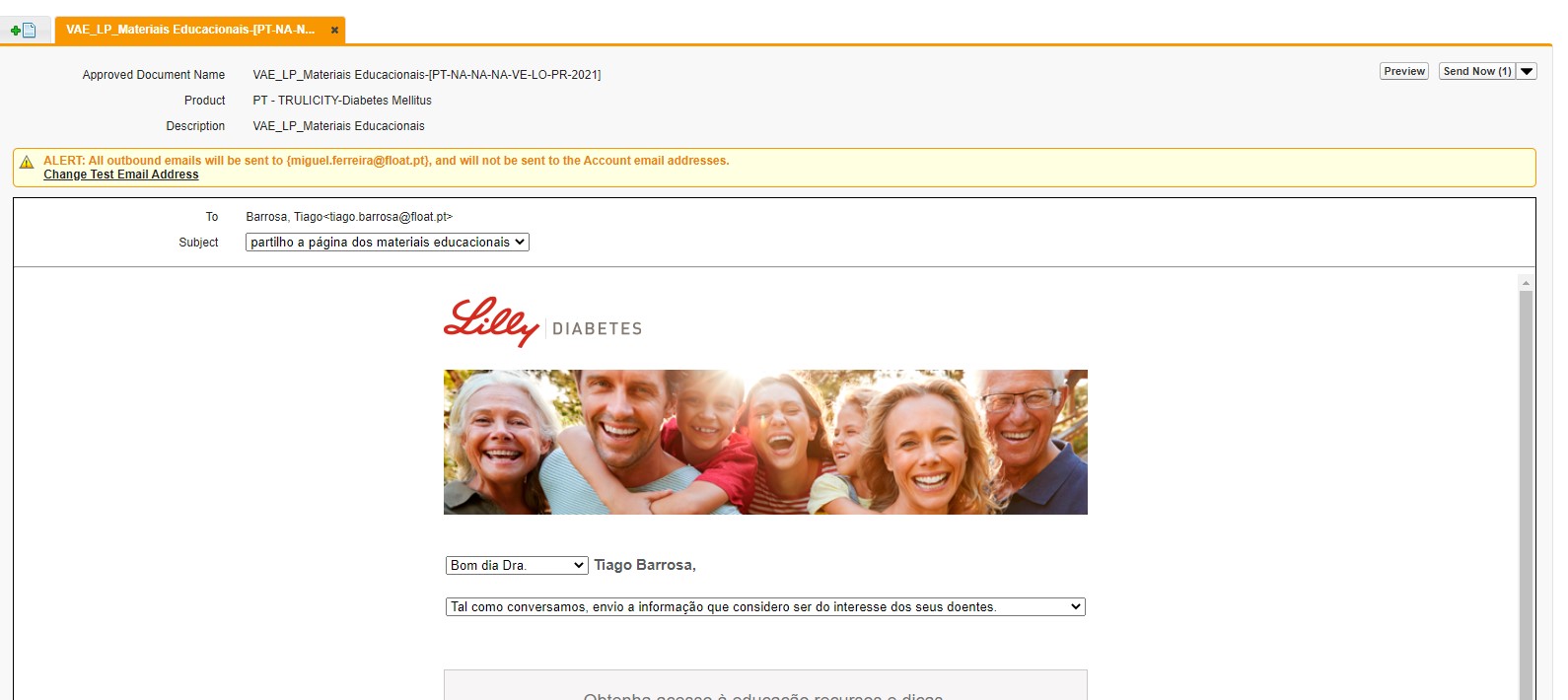
- Click send now and if the email was succesfully sent. There should be a green box at the top indicating that it was sent to "1 of 1 recipents".
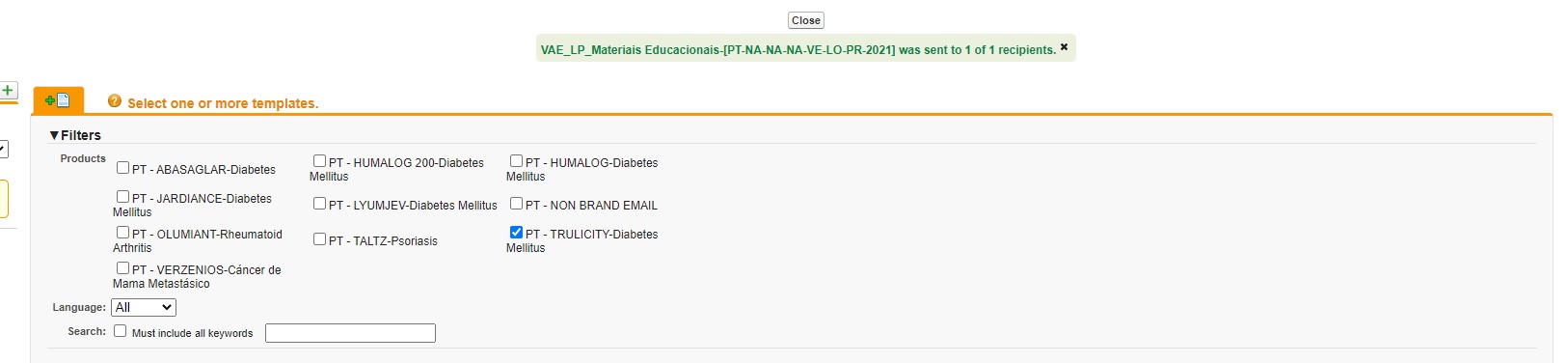
- After 1 to 2 minutes you should have a test copy of the selected email in your inbox. Print it as a PDF and save it to disk together with the HTML source files.
WARNING
The next steps are back in Veeva Vault
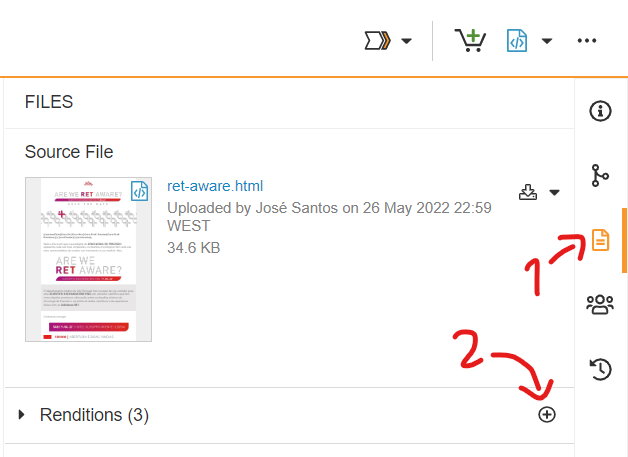
- Now it is time to go back to Veeva Vault and open the corresponding approved email template piece. On the sidebar open the Proof Rendtions section and click the plus sign.
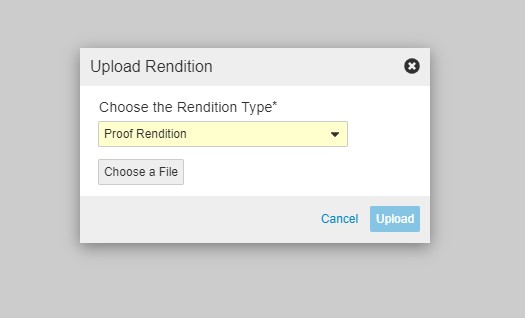
- Choose rendition type "Proof Rendition" and chose the PDF you created earlier.
You are now ready for starting the Approval Process provided you have completed the steps bellow.